# Sell Order
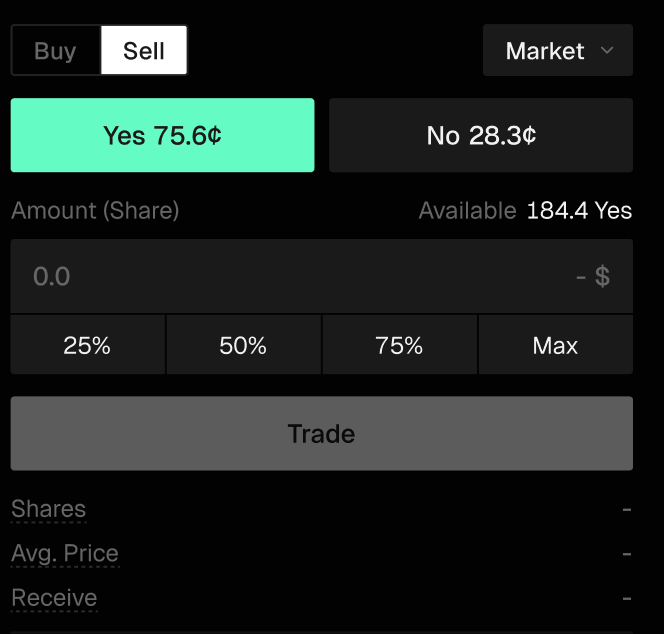
**Step 1:** Switch to the **Sell** tab in the execution panel to see your current holdings and their live market value.
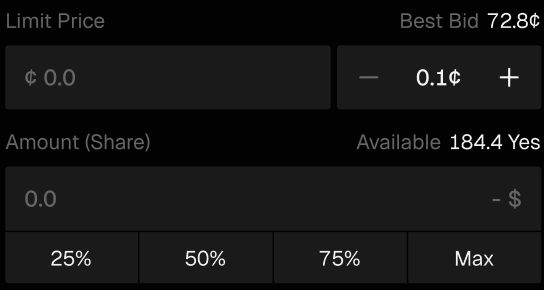
**Step 2:** Select **Market Sell** to exit immediately at the best buyer price, or **Limit Sell** to set a higher price and wait for a buyer.
**Step 3:** Decide how many **shares** you want to sell and, if using a **Limit Order**, the **specific price** you want to sell them for.
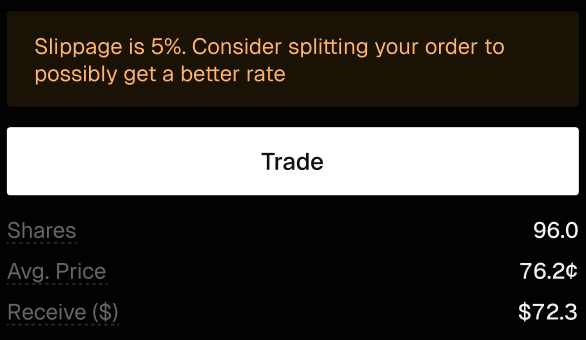
**Step 4:** Check the **Proceeds** to see exactly how much USDC will be returned to your balance after the trade.
**Step 5:** Click **Trade** or **Place Order** to complete the transaction. Your balance will update as soon as the order is filled.
***
### FAQs
What is a Sell Order in Whales Prediction?
A Sell Order allows you to exit an existing position by selling your Yes or No shares back to the market.
How do I place a Sell Order?
Switch to the Sell tab, choose Market or Limit, select how many shares to sell, review the proceeds, and confirm the order.
What is the difference between Market Sell and Limit Sell?
Market Sell exits immediately at the best available buyer price, while Limit Sell waits until the market reaches your specified price.
How do I know how much I will receive from a Sell Order?
The execution panel shows the expected proceeds in USDC before you confirm the trade.
When does my balance update after selling?
Your balance updates as soon as the Sell Order is filled.
---
# Agent Instructions: Querying This Documentation
If you need additional information that is not directly available in this page, you can query the documentation dynamically by asking a question.
Perform an HTTP GET request on the current page URL with the `ask` query parameter:
```
GET https://docs.whales.market/whales-prediction/trading-terminal/sell-order.md?ask=
```
The question should be specific, self-contained, and written in natural language.
The response will contain a direct answer to the question and relevant excerpts and sources from the documentation.
Use this mechanism when the answer is not explicitly present in the current page, you need clarification or additional context, or you want to retrieve related documentation sections.